Key Takeaways
A polished brand livestream comes from clear goals and steady preparation, not just a camera pointed at a stage. Plan the viewer experience before you choose the gear.
- Set a clear audience, purpose, and event format.
- Choose a streaming destination that fits how viewers will join.
- Check equipment, internet, and the production space in advance.
- Assign roles and rehearse the full run of show.
- Review the recording and use it to extend the event’s value.
Define the livestream’s goals and format
A professional livestream is easier to produce when the team knows what it needs to accomplish. Decide what viewers should understand or do, then shape the event around that outcome. This early planning keeps production choices tied to the audience rather than to equipment for its own sake.
Choose the audience and desired outcome
Start with the people you want to reach: customers, employees, partners, or a broader public audience. Consider what they already know, what they need from the event, and whether they will watch live or later. A product briefing, for example, may need time for questions, while an internal update may benefit from a direct, concise presentation. Make the intended outcome specific enough to guide the invitation, content, and follow-up.
Match the format to the event
The format should suit both the subject and the audience’s attention. A keynote can work well as a single-camera presentation, while a panel or product demonstration may need multiple views and transitions. A webinar, town hall, and conference session also differ in how much interaction viewers expect. For broader ideas on planning and coverage, explore live event production as part of the early format conversation.
Plan the run of show and key moments
A run of show gives presenters and crew a shared map of what happens and when. Mark the welcome, speaker handoffs, demonstrations, audience questions, and closing so the team can prepare for transitions rather than improvise them. A simple cue table helps connect the program to the production action:
| Program moment |
Production cue |
Audience need |
| Welcome |
Open title and host camera |
Know what the event covers |
| Speaker transition |
Change camera or introduce speaker |
Follow who is speaking |
| Demonstration |
Show the relevant view or slide |
See the key detail clearly |
| Questions |
Bring in moderator or question prompt |
Understand how to participate |
Use the table as a starting point, then add timings and names for the actual event. Keep the plan flexible enough to absorb a short delay without losing the moments that matter most.
Select a platform and streaming setup
The streaming destination shapes how people find the event and what they need in order to watch. Before committing, consider audience habits, access requirements, and the level of interaction the event calls for. The best fit is the one your viewers can use easily and your team can test with confidence.
Compare social platforms, webinar tools, and embedded streams
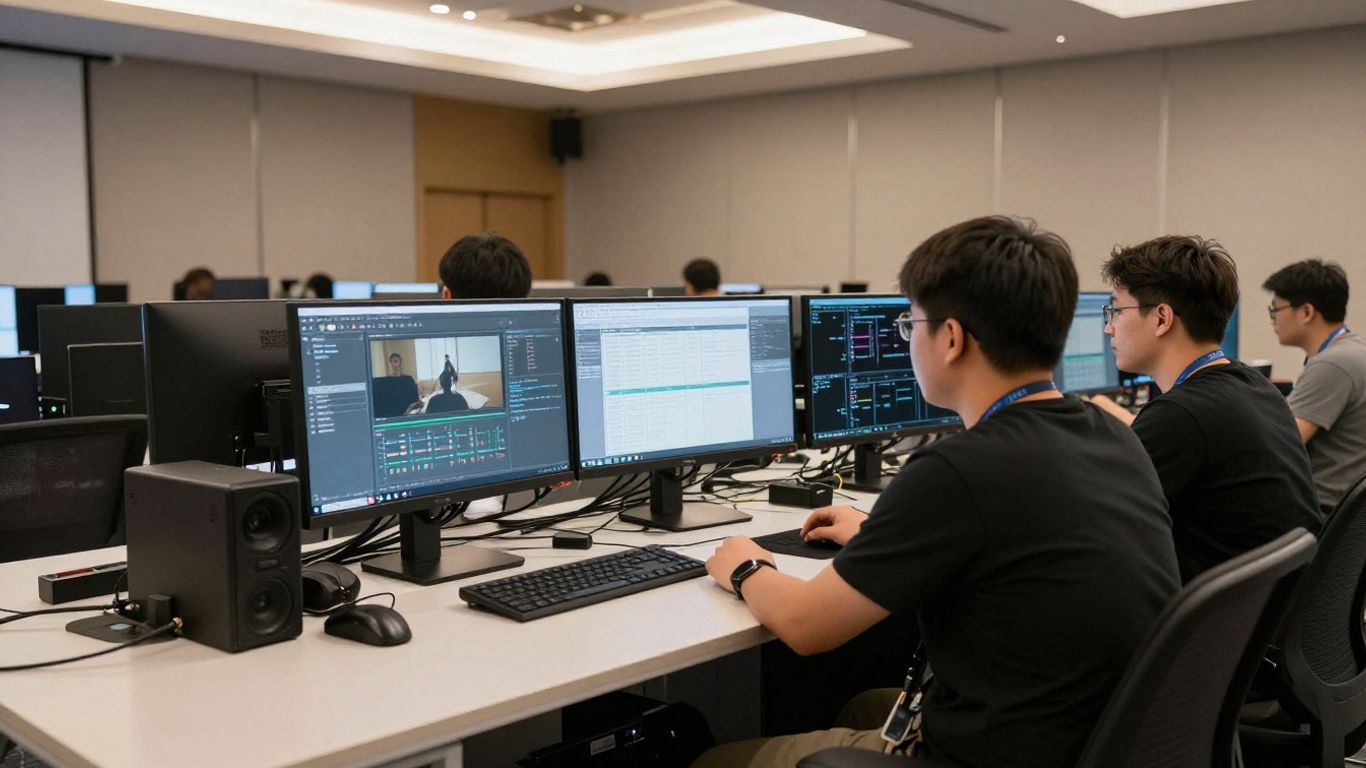
Social platforms can make an event easy to discover, while webinar tools may suit a more structured presentation with registration or moderated questions. An embedded stream can give the event a home on a company website, though you will need to consider how viewers arrive there. Compare options based on your audience’s likely behavior and the features the event genuinely needs. A streaming setup guide can help you think through the basic equipment and software decisions without letting the tool dictate the event format.
Check audience access and platform requirements
Confirm whether viewers need an account, invitation, registration, or a particular device to join. Check the platform’s current requirements for live access, account permissions, and stream configuration well before event day. If the event is private or sensitive, review the available audience controls and decide how the link will be shared. Clear joining instructions reduce avoidable confusion when the broadcast is about to begin.
Decide whether to stream to one channel or several
One destination makes testing and audience support more straightforward. Multiple channels may broaden access, but they also add setup steps and create more places to monitor comments or technical issues. Decide based on where your audience already is, the staff available to support the broadcast, and whether viewers need a consistent interaction experience. VG Creations lists live streaming among its production services, so brands planning a larger event can include a production partner in that early conversation.
Prepare the equipment and production space
The setup should serve the content, not overwhelm it. Prioritize clear sound, a stable picture, and lighting that makes speakers easy to see. A tidy production area also gives the crew room to work without distracting viewers.
Choose cameras, microphones, and lighting
Choose equipment based on the format, room, and number of speakers. A camera should hold a steady, well-composed shot, while the microphone should capture voices clearly and limit competing room noise. Test the lighting from the camera’s position; a bright room can still leave faces in shadow. For a broader checklist of kit decisions, use this video equipment guide to match gear to the shoot, crew, location, and budget.
Confirm internet speed and backup connectivity
Use a wired connection when practical, and test the connection from the exact room and device that will carry the stream. Check upload performance at the time of day you expect to broadcast, since shared networks can behave differently under load. Arrange a backup connection and know who can switch to it if the primary link fails. A backup plan is most useful when the crew has already rehearsed how to use it.
Arrange the set, framing, and on-screen branding
Look at the frame as a viewer will see it. Keep the background orderly, position the camera near eye level, and leave space for any graphics or presentation content. Confirm that colors, logos, and titles remain legible on both large and small screens. A quick camera test with the actual set often reveals clutter or glare that is easy to fix before the room fills.
Build the production plan and team
A smooth broadcast depends on people knowing their responsibilities before the event begins. Even a small crew benefits from clear decisions about who hosts, who operates equipment, and who watches the stream. VG Creations offers event and conference video production, a relevant service to consider when planning professional event coverage alongside the livestream.
Assign roles for hosting, camera work, and technical direction
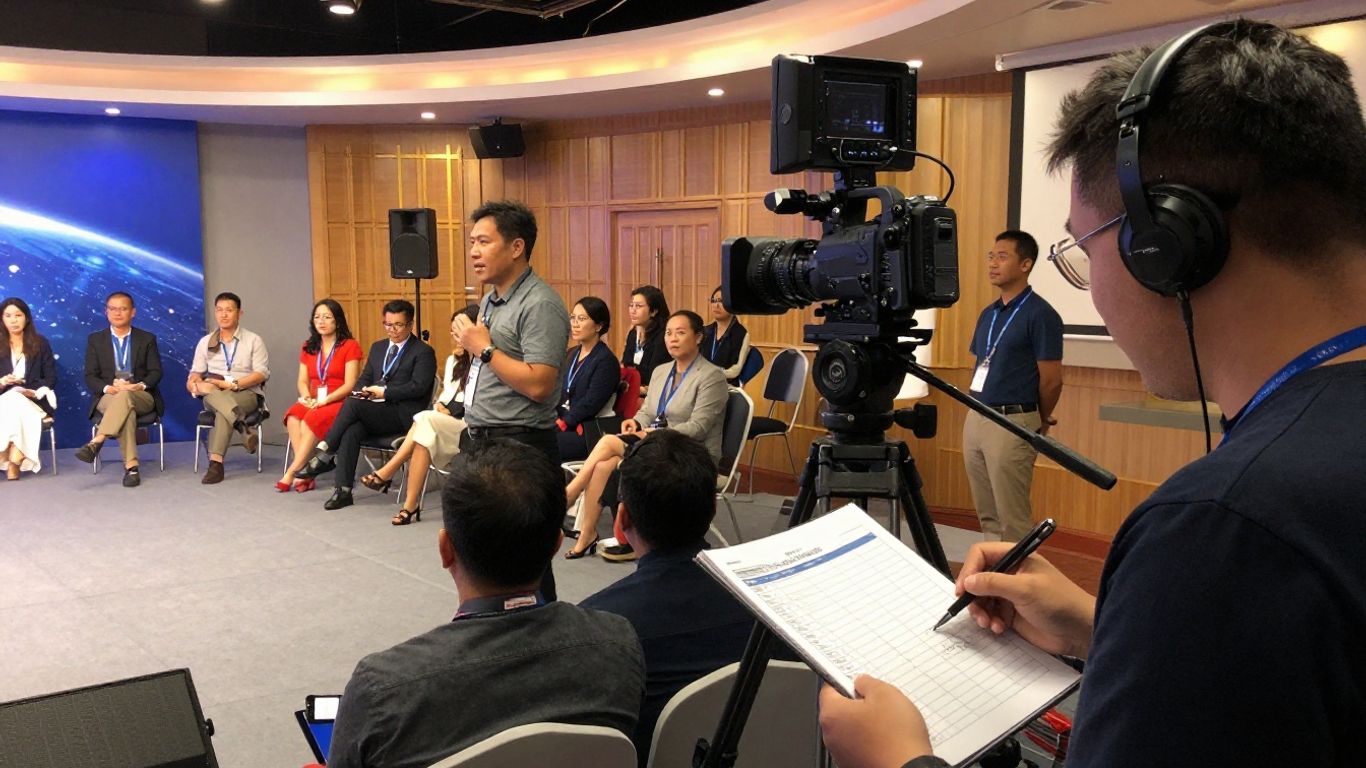
Name a host or moderator, a person responsible for camera and audio, and a technical lead who can watch the outgoing stream. One person may hold more than one role for a modest production, but avoid assigning critical tasks that must happen simultaneously to the same person. Share the contact method the team will use during the broadcast. Clear ownership makes it easier to solve small problems without interrupting the event.
Prepare graphics, presentations, and video assets
Gather slides, titles, speaker names, and any prerecorded material in one place. Check that files open correctly on the production computer and that their order matches the run of show. Use consistent visual styling, but keep graphics simple enough to read at a glance. When the assets are ready early, the crew can focus rehearsal time on transitions rather than last-minute file fixes.
Coordinate speakers, permissions, and contingency plans
Speakers should know when to arrive, where to look, how to handle questions, and what to do if they lose their connection. Confirm permission for any music, images, or video included in the broadcast, and make sure presenters understand how their material will be used. A short contingency checklist can keep the team aligned:
- Identify who contacts a speaker if they drop off.
- Keep a backup copy of presentations and video assets.
- Decide what the host says during a brief interruption.
- Record the support contact and alternate connection details.
Keep the checklist close to the technical lead, not buried in a planning document. The goal is not to predict every mishap; it is to make the first response clear when something unexpected happens.
Test the livestream before the event
A rehearsal turns assumptions into things the crew can verify. Run through the event using the intended equipment, platform, and room rather than relying on a quick camera check. That is when issues with sound, timing, file playback, or access are still easy to correct.
Run a full technical rehearsal
Invite speakers and crew to rehearse the complete sequence, including introductions, transitions, audience questions, and the ending. Ask speakers to use the device and connection they expect to use on the day. The team should practice its cues and confirm how it will communicate off camera. A realistic rehearsal helps everyone enter the event with a shared sense of pace.
Check audio, video, graphics, and stream settings
Listen to a test recording on headphones and check for hum, echo, inconsistent levels, or distracting room noise. Review the picture for focus, exposure, framing, and lighting, then confirm slides and graphics appear as intended. Check the event’s access settings and verify that the intended viewers can reach the test stream. VG Creations provides live streaming production, and a professional production discussion can help a team clarify what needs to be tested for its particular event.
Troubleshoot common connectivity and equipment issues
If the stream stutters, reduce avoidable network use and check the connection before changing several settings at once. If the picture or sound fails, verify the selected input, cable, and device settings, then return to the last known working setup. Keep spare cables and charged batteries close by. A calm, one-change-at-a-time approach makes it easier to spot the cause instead of adding new problems.
Manage the broadcast and audience experience
Once the event is live, the crew’s job is to keep the experience steady for viewers and presenters. Watch both the production output and the audience channel, while avoiding unnecessary changes during a segment. The best on-air response is often quiet coordination behind the scenes.
Start the stream and monitor quality
Open the stream early enough to confirm that the picture and sound are reaching the destination before the program begins. Have the host welcome viewers while the technical lead checks the outgoing feed and watches for obvious quality changes. Keep the run of show and contact channel accessible throughout. VG Creations lists live streaming production as a service for events, providing a relevant point of contact for businesses considering professional support for a broadcast.
Engage viewers with moderation and interaction
Tell viewers how to participate and when questions will be addressed. A moderator can collect useful questions, remove disruptive comments, and pass relevant prompts to the host without distracting from the presentation. Respond to a few comments in a way that supports the event’s purpose rather than trying to answer everything at once. Consistent attention helps viewers feel included without making the broadcast feel crowded.
Respond to delays or technical problems
If a delay occurs, let the host know what is happening and give viewers a simple update when appropriate. For a brief interruption, continue from the last clear point once the stream is stable; for a longer issue, follow the contingency plan and communicate where viewers can get updates. Avoid promising a precise recovery time unless the team knows it. A composed response can preserve trust even when production does not go exactly to plan.
Repurpose the livestream after the event
The event can remain useful after the live moment has passed. Preserve the recording, review it for strong segments, and decide where follow-up content can serve the original audience or a new one. That work should connect back to the goals set during planning, not simply produce clips for the sake of having them.
Save and review the recording
Confirm that the recording has finished processing and save a copy in the agreed location. Review it for audio or visual problems, missing sections, and moments that may need trimming before sharing. Keep track of any edits made to the public version, especially if the event included sensitive material or a speaker requested a correction. A reliable archive makes future reuse much easier.
Create clips for social media and marketing
Choose sections that make sense on their own, such as a concise answer, a useful demonstration, or a memorable event moment. Add context where a clip might otherwise begin mid-thought, and format it for the destination where it will appear. For more ideas about extending the value of event footage, explore event video planning. Treat each clip as a small piece of the larger story, with a clear reason for someone to watch it.
Evaluate performance against the original goals
Compare the outcome with the purpose established at the start. Depending on the event, useful signals might include attendance, viewer retention, questions submitted, or follow-up actions; choose measures that actually relate to the goal. Note what worked in the production and what created friction for the audience or team. Those observations give the next event a stronger starting point.
Conclusion
A professional brand livestream is built through connected decisions: who it serves, how it is delivered, and what happens after the final frame. Clear roles, practical testing, and a thoughtful follow-up plan help the event feel intentional to viewers and useful to the business long after it ends.
Frequently Asked Questions
How far in advance should I plan a brand livestream?
Begin as early as practical, especially if the event involves multiple speakers, a venue, or a private audience. Allow enough time to confirm the platform, prepare assets, and rehearse the full sequence before broadcast day.
What equipment do I need for a professional livestream?
A typical setup includes a camera, microphone, lighting, a computer or streaming device, and a dependable internet connection. The exact choices depend on the room, number of speakers, and complexity of the event.
Should I stream to one platform or several?
One destination is usually simpler to test and monitor. Consider multiple destinations only when they serve distinct audience needs and the team can support the added setup and moderation work.
How can I make livestream audio clearer?
Place the microphone close enough to capture the speaker clearly, reduce background noise, and listen to a test recording before the event. Check levels for every speaker and avoid relying on the camera microphone when the room is noisy.
What should a livestream rehearsal include?
Rehearse the entire run of show, including speaker handoffs, media playback, audience interaction, and the ending. Test the actual connection, equipment, graphics, and access settings planned for the event.
What should I do if the livestream connection fails?
Follow the backup plan, check the connection and selected input, and communicate calmly with viewers if the interruption continues. Avoid making several technical changes at once so the crew can identify what restores the stream.
How can I reuse a livestream recording?
Review the recording, save a clean copy, and select self-contained moments that suit your audience and distribution channels. Clips, summaries, and the full recording can each serve a different purpose when they connect to the event’s original goals.
